> For the complete documentation index, see [llms.txt](https://docs.openbrush.app/llms.txt). Markdown versions of documentation pages are available by appending `.md` to page URLs; this page is available as [Markdown](https://docs.openbrush.app/user-guide/using-the-open-brush-tools-quick-tools-and-menu-panels/extras-panel/transform-panel.md).
# Transform Panel
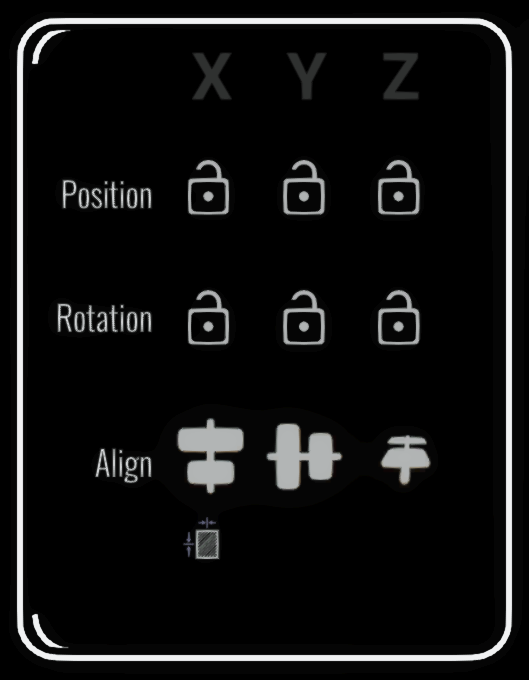
The Transform panel controls how a selection can move and rotate. Its axis locks work with selected brush strokes, imported media and guides.
## Enter exact transforms
The position, rotation and scale fields show the current selection transform. Select a value to open the numeric keyboard, enter a replacement and confirm it. If no selection is active, the fields apply to the last media or guide widget you moved.
## Position locks
Use the **X**, **Y** and **Z Position Lock** buttons to prevent movement along individual sketch axes. For example, lock Y to move an object across a level plane without changing its height. Lock two position axes to constrain movement to a straight line.
## Rotation locks
Use the **X**, **Y** and **Z Rotation Lock** buttons to prevent rotation around individual sketch axes. The unlocked axes remain free to rotate.
Axis locks retain the object's existing position or rotation on the locked axes. They use the sketch's coordinate system, so rotating the whole sketch also changes how those axes relate to the room.
Axis locking is different from snapping: locks prevent a value from changing, while snapping moves it to fixed increments. See [Snap Settings](/user-guide/using-the-open-brush-tools-quick-tools-and-menu-panels/extras-panel/snap-settings-panel.md).
## Align selected items
Select two or more strokes or widgets, choose whether their minimum edges, centres or maximum edges should line up, then select **Align X**, **Align Y** or **Align Z**. Open Brush moves the items to a common line or plane on that axis. The action can be undone.
## Distribute selected items
The distribution controls spread selected items along X, Y or Z. Choose minimum edges, centres, maximum edges or equal gaps as the spacing reference, then select the axis. Use at least three selected items so Open Brush has endpoints and an item to distribute between them.
---
# Agent Instructions
This documentation is published with GitBook. GitBook is the documentation platform designed so that both humans and AI agents can read, navigate, and reason over technical content effectively. Learn more at gitbook.com.
## Querying This Documentation
If you need additional information that is not directly available in this page, you can query the documentation by asking a question.
Perform an HTTP GET request on the following URL with the `ask` and `goal` query parameters:
```
GET https://docs.openbrush.app/user-guide/using-the-open-brush-tools-quick-tools-and-menu-panels/extras-panel/transform-panel.md?ask=&goal=
```
`ask` is the immediate question: it should be specific, self-contained, and written in natural language.
`goal` is what the user is ultimately trying to achieve, the reason they need the answer. Sharing it helps GitBook give you a better, more relevant answer. A goal is most helpful when it describes the outcome the user wants rather than restating the question. For example, with `ask=how do I create an API token`, a goal like `automate deployments from our CI pipeline` lets GitBook tailor the answer to that use case.
The response will contain a direct answer to the question and relevant excerpts and sources from the documentation.
Use this mechanism when the answer is not explicitly present in the current page, you need clarification or additional context, or you want to retrieve related documentation sections.